Digital Declutter: 25 Things to Clean Up on Your Phone and Laptop in 30 Minutes
Feeling overwhelmed by files, apps, notifications and screenshots? Use this simple 30-minute digital declutter checklist to clean up your phone and computer without turning it into an all-day project.
Table of contents
Our homes are not the only places that collect clutter.
Phones fill up with screenshots we no longer need. Downloads folders become temporary storage that somehow turns permanent. Browser tabs stay open for weeks. Notifications interrupt us all day. Files get saved with names like “final,” “final-2,” and “final-really-final.”
None of these things seems like a big problem on its own.
But together, they create friction.
You search longer for files. Important notifications disappear among unimportant ones. Storage fills up. Your desktop becomes difficult to navigate, and opening your phone can feel like being greeted by dozens of unfinished tasks.
The good news is that you do not need an entire weekend to fix it.
A focused 30-minute digital declutter can make your phone and computer noticeably calmer and easier to use.
Here is a simple way to do it.
Why Digital Clutter Matters
Digital clutter does not occupy physical floor space, so it is easy to ignore.
But it still demands attention.
Every unnecessary notification asks you to look at something.
Every poorly named file makes future-you spend extra time searching.
Every unused app occupies storage and adds another icon to scan.
Every crowded downloads folder makes finding an important document slightly harder.
The goal of digital decluttering is not to create a perfectly organized device.
The goal is much simpler:
Make the things you use easy to find and remove the things you no longer need.
Set a timer for 30 minutes and work through the following checklist.
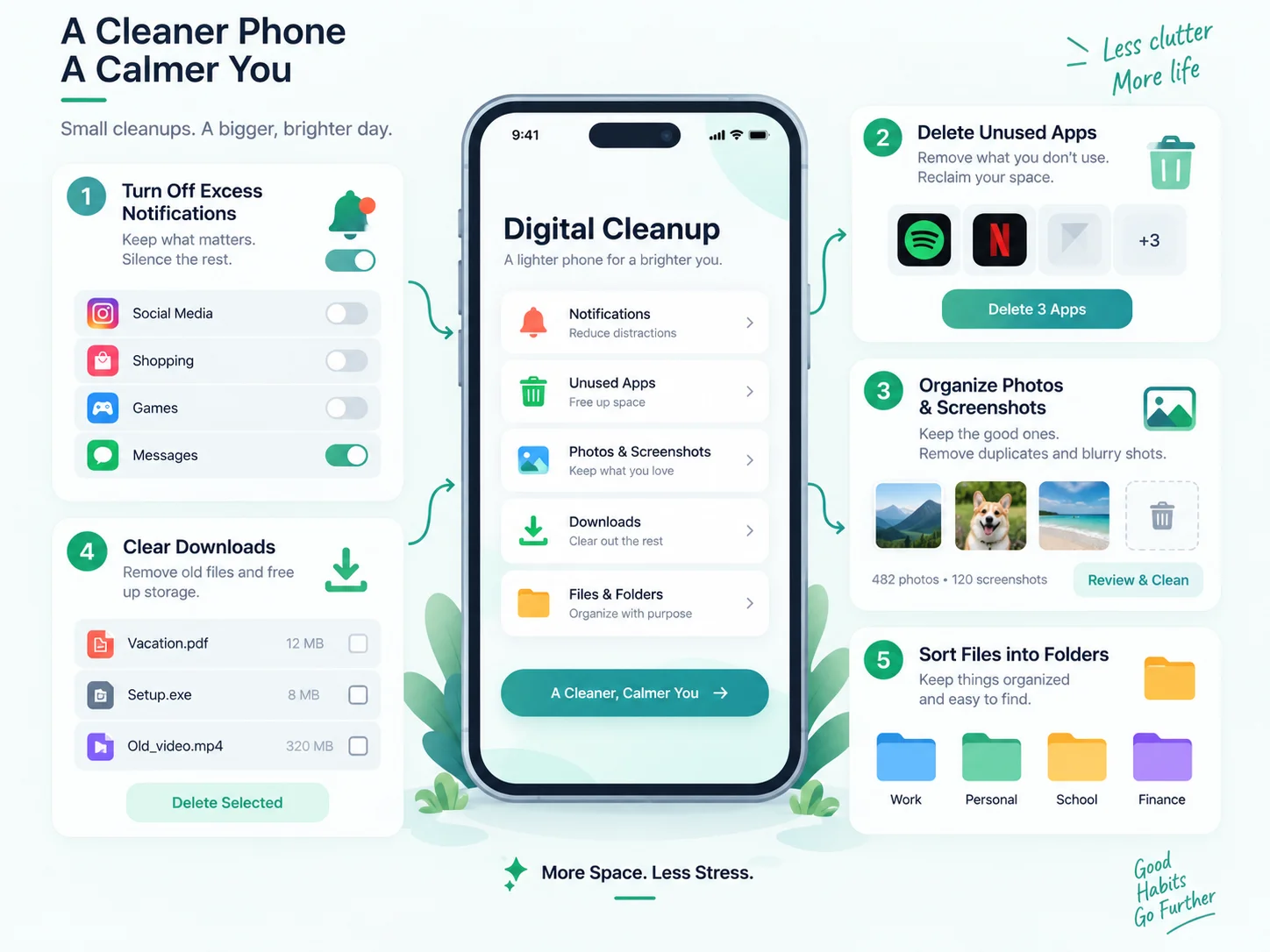
Minutes 0–5: Clean Up Your Notifications
Notifications are one of the fastest things to clean because you can immediately reduce future distractions.
Open your notification settings and look at which apps are allowed to interrupt you.
Ask yourself one question:
Do I actually need to know about this immediately?
If the answer is no, turn the notification off.
Start with these:
1. Turn off shopping notifications
You probably do not need an alert every time a store announces a sale.
Keep order and delivery notifications if they are useful, but disable promotional ones.
2. Disable unnecessary social media alerts
You may want direct-message notifications while disabling likes, suggestions, trending posts and other non-essential alerts.
3. Turn off notifications from rarely used apps
If you barely open an app, it probably does not need permission to interrupt you.
4. Review email notifications
You generally do not need your phone to notify you about every email the moment it arrives.
Consider keeping alerts only for accounts where immediate responses genuinely matter.
5. Remove notification badges you ignore
Those little red numbers can create the feeling that something always needs attention.
If you regularly ignore them, consider switching them off.
A quieter phone does not mean missing important information.
It means deciding which information deserves immediate access to your attention.
Start With Your Phone
Your phone is often the device you interact with most frequently, which makes it a good place to remove unnecessary digital noise first.
Minutes 5–10: Remove Apps You Do Not Use
Most of us have apps installed for reasons we barely remember.
Maybe you downloaded one for a single trip.
Maybe you tested three different photo editors and only use one.
Maybe an app was useful two years ago but no longer fits your routine.
Now is a good time to remove them.
6. Delete apps you have not used in months
If your phone shows app usage information, use it.
Unused apps are usually easy candidates for deletion.
7. Remove duplicate apps
Do you really need three weather apps, four note-taking apps or multiple file managers?
Keep the one you prefer.
8. Delete old games you no longer play
Games can consume significant storage, especially if they download additional files after installation.
9. Remove temporary travel or event apps
Airline, hotel, conference, ticketing and local transport apps often remain installed long after the event ends.
Delete them if you no longer need them.
10. Move rarely used apps away from your home screen
Not every app needs to be deleted.
If you use something occasionally, remove it from your main home screen and keep it in the app library or a secondary folder.
Your main screen should ideally contain the tools you actually use.
Minutes 10–15: Clean Photos, Screenshots and Downloads
This part can easily turn into a two-hour project, so resist the temptation to review every photo.
You are doing a quick cleanup, not reorganizing your entire digital history.
11. Delete obvious duplicate photos
Remove accidental duplicates, repeated screenshots and failed photos.
12. Remove blurry or unusable images
If you would never share, print or intentionally look at the photo again, you probably do not need it.
13. Clear old screenshots
Screenshots are often temporary memory aids.
Receipts, directions, product comparisons, payment confirmations and random social media posts can accumulate quickly.
Delete the ones that have already served their purpose.
14. Review your Downloads folder
Downloads folders are among the biggest sources of forgotten digital clutter.
Look for:
Old installers
Duplicate PDFs
Temporary documents
Images downloaded for one-time use
ZIP files already extracted
Old attachments
Delete anything you clearly no longer need.
15. Empty the trash or recycle bin
Deleting a file may not immediately free storage if it remains in the trash.
Only empty it after quickly checking that nothing important was removed accidentally.
Minutes 15–20: Organize Your Important Files
Now that some clutter is gone, organize what remains.
Do not build an elaborate 50-folder system.
Simple systems are easier to maintain.
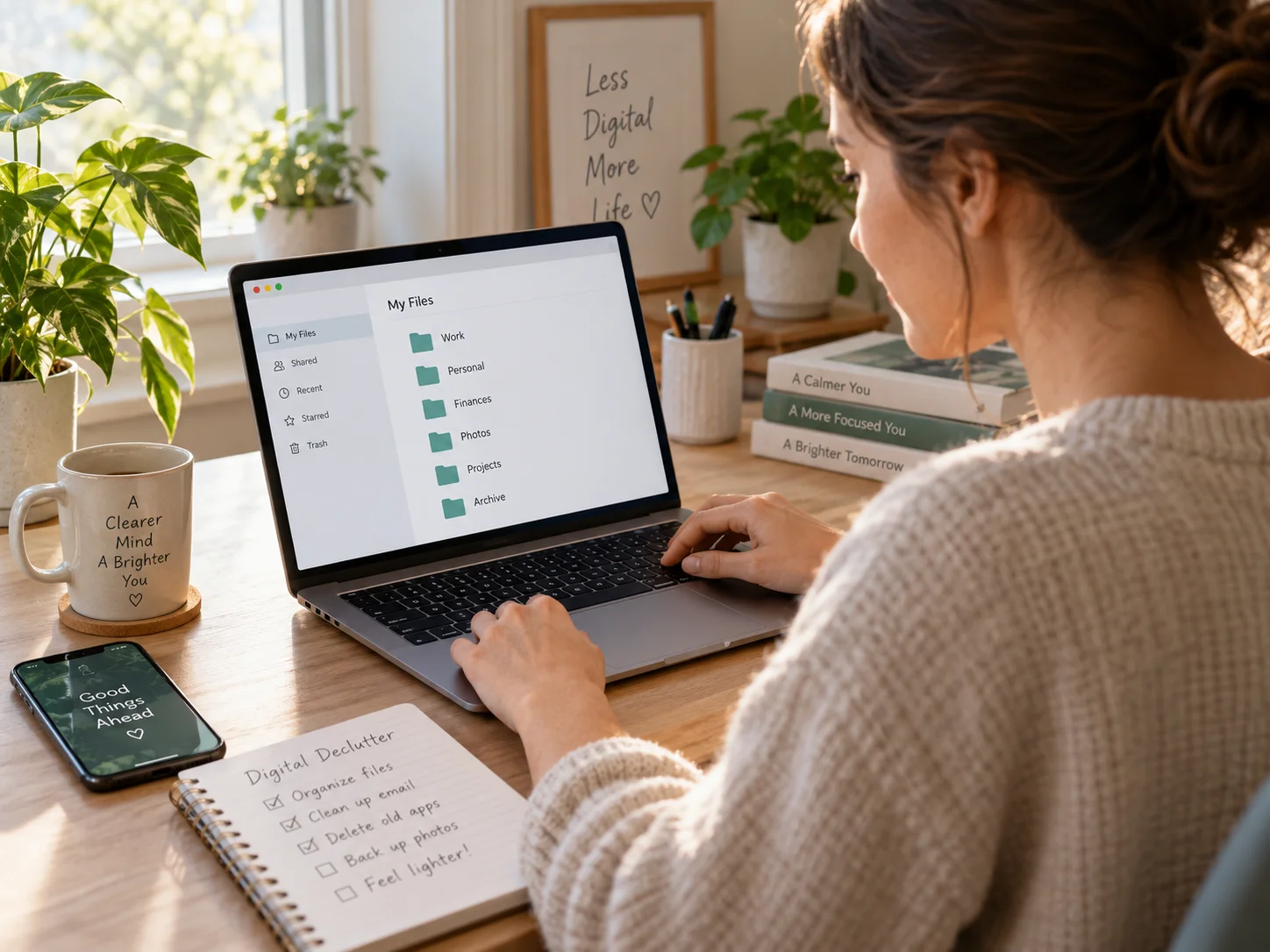
A useful starting structure might be:
Work
Personal
Finance
Photos
Projects
Archive
Inside those folders, add more categories only when necessary.
16. Clean your desktop
Your desktop should not become permanent storage.
Move important files into proper folders and delete temporary ones.
17. Rename unclear files
Names like:
Document(4).pdf
or
IMG_9832.png
tell you almost nothing later.
A better filename might be:
Health-Insurance-Policy-2026.pdf
or:
NXStudio-Blog-Cover-Digital-Declutter.png
18. Create folders around how you actually work
Do not create complicated folder structures simply because they look organized.
Organize according to how you search for information.
19. Create an Archive folder
Not everything old needs to be deleted.
Files you may need later but do not regularly use can go into an Archive folder.
20. Remove duplicate documents
Watch for files such as:
proposal.pdf
proposal-final.pdf
proposal-final2.pdf
proposal-final-new.pdf
Keep the correct version and remove unnecessary copies when you are sure they are no longer needed.
Minutes 20–25: Clean Your Browser and Email
Browsers quietly collect their own kind of clutter.
Bookmarks, tabs, extensions and downloads can build up over time.
21. Close tabs you are keeping “for later”
If something matters, bookmark it or save it somewhere intentional.
A browser tab is not a reliable task-management system.
22. Remove old bookmarks
Delete pages you no longer use.
Create a few simple bookmark folders if needed, such as:
Work
Learning
Tools
Personal
23. Remove unused browser extensions
Extensions can clutter your browser and may consume resources.
Keep only the tools you actually use.
24. Unsubscribe from unwanted emails
Instead of repeatedly deleting the same promotional emails, unsubscribe.
A few minutes spent today can prevent hundreds of unnecessary emails in the future.
Minutes 25–30: Create a System That Prevents the Mess
Cleaning is helpful.
Preventing the clutter from returning is even more useful.
Before your timer ends, create one simple rule you can maintain.
25. Schedule a tiny weekly reset
You do not need another major digital cleanup if you spend a few minutes maintaining things regularly.
Once a week, take 5–10 minutes to:
Clear screenshots
Clean downloads
Close unnecessary browser tabs
Move desktop files
Delete unused documents
Check available storage
That is enough for most people.
A Simple Digital Organization Rule
When deciding what to do with a digital item, use this quick system:
Delete it if you do not need it.
File it if you will need it later.
Act on it if it requires action.
Archive it if it may be useful someday but does not belong in your active workspace.
Avoid creating a fifth category called:
“I’ll deal with this later.”
That is where clutter usually begins.
Your 30-Minute Digital Declutter Checklist
Before you finish, see how many of these you completed:
✓ Turn off unnecessary notifications
✓ Disable promotional alerts
✓ Delete unused apps
✓ Remove duplicate apps
✓ Clean your home screen
✓ Delete unnecessary screenshots
✓ Remove blurry photos
✓ Clear your Downloads folder
✓ Empty your trash
✓ Clean your desktop
✓ Rename important files
✓ Create simple folders
✓ Archive old documents
✓ Remove duplicate files
✓ Close unnecessary browser tabs
✓ Organize bookmarks
✓ Remove unused browser extensions
✓ Unsubscribe from unwanted emails
✓ Clear temporary files
✓ Review device storage
✓ Organize work files
✓ Organize personal documents
✓ Back up important files
✓ Create an Archive folder
✓ Set a weekly 5–10 minute reset
You do not need to finish every item today.
Even completing half of them can make your digital space noticeably easier to manage.
The Goal Is Not Digital Perfection
It is easy to turn organization into another project that needs to be perfected.
Do not.
Your folders do not need beautiful names.
Your inbox does not need to reach zero.
Your photo library does not need to be perfectly categorized.
Your phone does not need to look like a minimalist productivity video.
Your system only needs to help you find what matters without unnecessary friction.
A cleaner digital space gives you fewer things to scan, fewer interruptions to process and fewer places to search.
Start with 30 minutes.
Then maintain it with a few minutes each week.
A clean digital space is useful. A simple system that keeps it clean is even better.
— NXStudio Lab